
How to Build a WordPress Website for Beginners in 2026
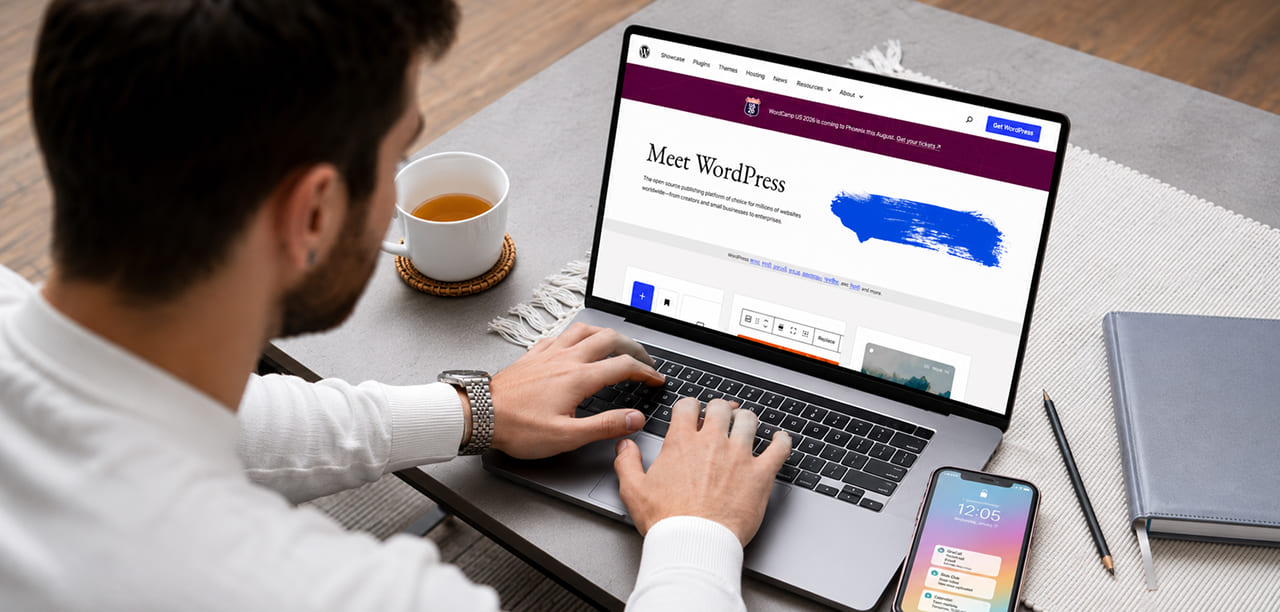
WordPress still powers a huge share of the web, and in 2026 it’s more beginner-friendly than ever thanks to a new generation of visual builders, AI-assisted plugins, and one-click hosting setups. You no longer need to know how to code to launch a professional-looking site — but the tools you choose along the way still make a big difference in how the finished site performs.
Learning how to build a WordPress website is one of the easiest ways to create a professional online presence without advanced coding skills. From choosing a domain name and hosting provider to installing WordPress, selecting a theme, adding plugins, and optimizing your website for search engines, a structured step-by-step process helps beginners launch a secure, responsive, and scalable website with confidence.
If you’d rather skip the learning curve altogether, Adroitte’s website design services and web development services handle the entire build for you. Otherwise, here’s a complete, step-by-step path to launching your first WordPress site, along with the leading tools and plugins professionals actually use to build sites this year.
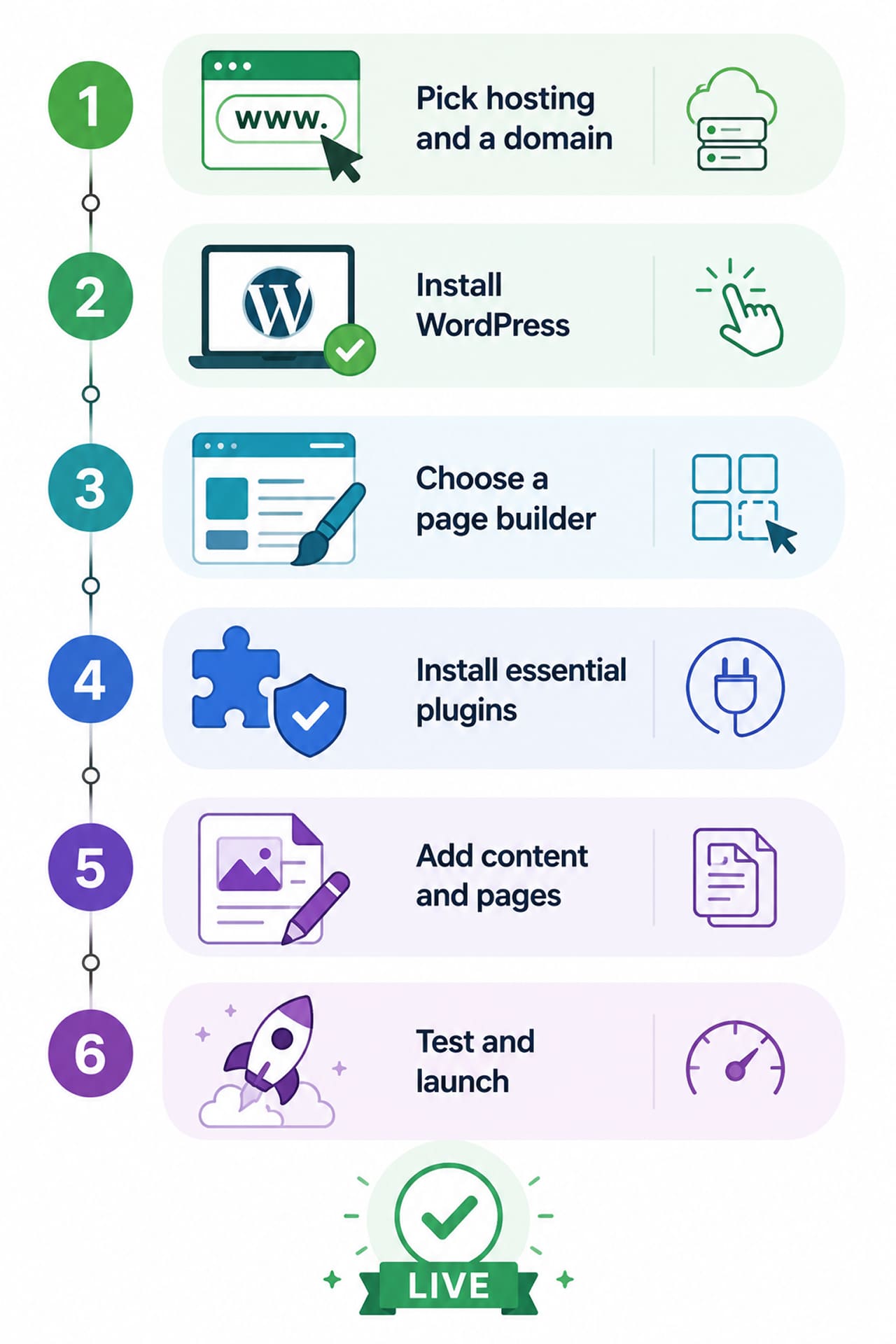
Step 1: How to Build a WordPress Website from Scratch: Pick Hosting and a Domain
Before touching WordPress itself, you need a domain name and a hosting plan. Your domain is your address on the web (yourbusiness.com); your host is the server space where your site’s files actually live.
For beginners, look for a host that offers:
- One-click WordPress installation, so you’re not manually configuring databases
- Solid uptime guarantees, since a site that’s frequently down hurts both users and search rankings
- Built-in caching or a free CDN, which saves you a performance headache later
- Easy SSL setup, so your site loads securely (the padlock icon browsers now expect by default)
Most beginners are best served by a mid-tier shared or managed WordPress hosting plan rather than the cheapest option available — the cheapest plans often throttle performance once your traffic grows.
Step 2: Install WordPress and Choose a Starting Point
Once hosting is live, install WordPress — most hosts handle this in a couple of clicks from their dashboard. From there, you have two realistic starting points:
- A lightweight default theme, which you customize manually using the built-in block editor.
- A visual page builder, which is the far more common route for beginners in 2026 because it removes the need to touch code entirely and gives you a real-time, drag-and-drop preview of your site.
For anyone without design or development experience, a page builder is almost always the better starting point.
Step 3: Choose a Page Builder
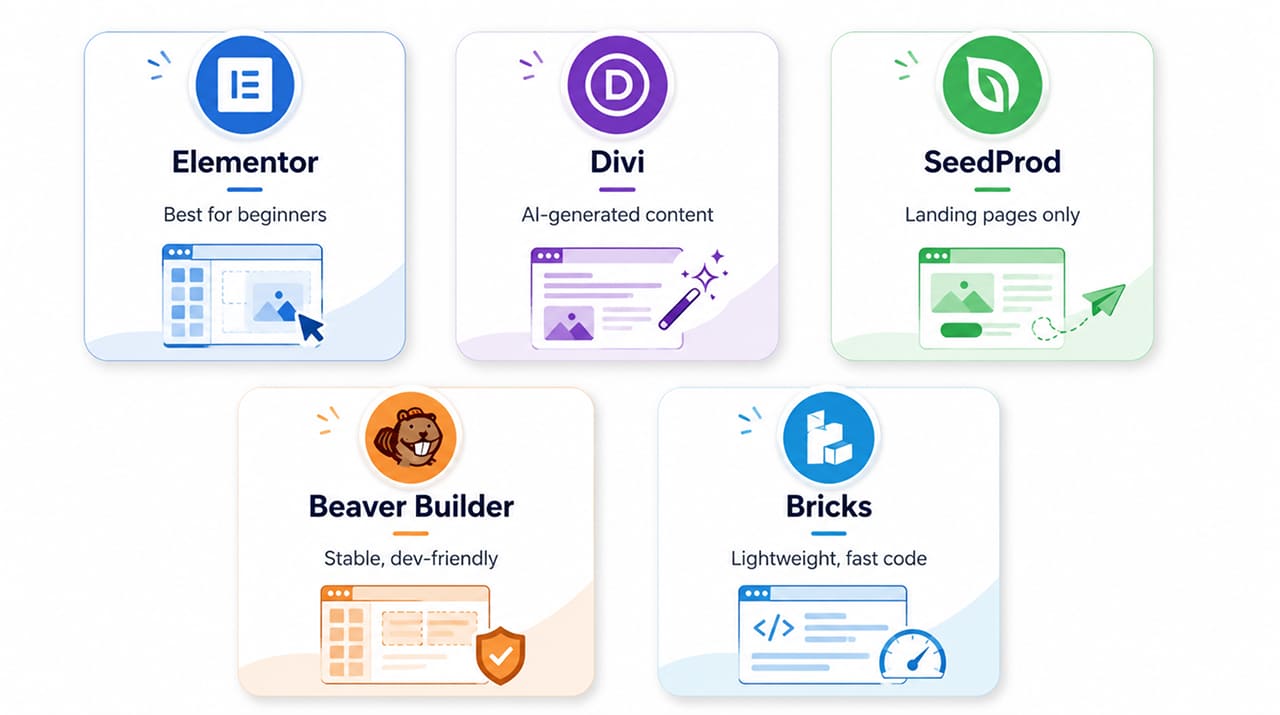
This is the single biggest decision for a beginner, since it defines how you’ll design every page on your site going forward, and switching builders later can mean rebuilding pages from scratch. The leading options this year:
- Elementor — the most widely used WordPress page builder, known for its drag-and-drop editor, a huge library of pre-built templates, and built-in AI site-generation features that can write and lay out a first draft of your site for you. It’s actively used on a substantial share of all WordPress websites, which also means it has the largest ecosystem of tutorials and third-party add-ons.
- Divi — a combined theme-and-builder package with thousands of pre-designed layouts, strong visual customization through global design elements, and an AI assistant that can generate content, images, and full page layouts from a short prompt.
- SeedProd — purpose-built for landing pages and lightweight marketing sites rather than full site builds. It’s a strong fit if your primary goal is a fast, focused page for lead generation or a product launch rather than a multi-page business site.
- Beaver Builder — favored by developers and agencies for its stable, lightweight code that rarely breaks after WordPress core updates, making it a dependable long-term choice even though it’s less flashy than newer AI-driven tools.
- Bricks — a developer-leaning builder with fast rendering and clean underlying code, ideal if you’re planning to eventually want tighter design control without the page bloat that heavier builders can introduce.
For a genuinely first website, Elementor or SeedProd are the easiest starting points. Beaver Builder and Bricks suit people who expect to grow into more technical control over time, or who are already comfortable with basic web design concepts.
Step 4: Install the Essential Plugins
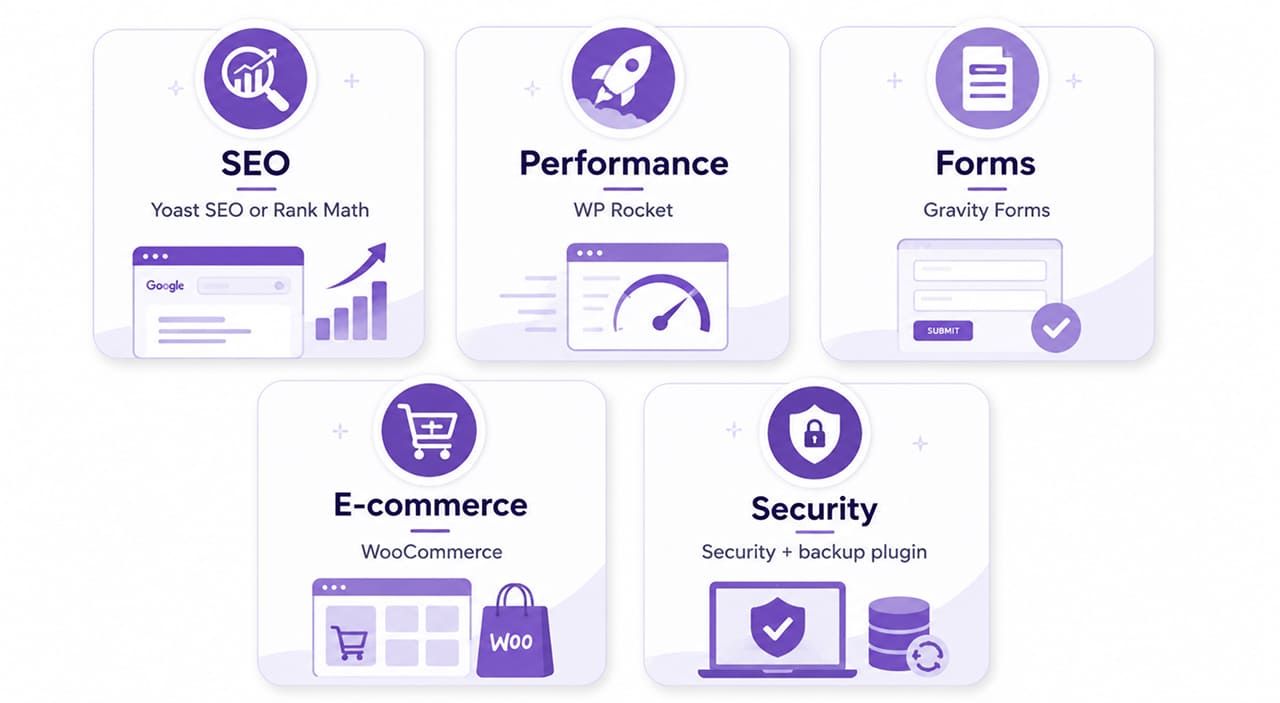
A good WordPress site in 2026 typically runs a lean, curated plugin stack rather than dozens of overlapping tools — every extra plugin is another thing that can slow your site down or conflict with an update. Here are the categories and leading names worth knowing.
SEO
- Yoast SEO — the most popular SEO plugin, great for beginners because it walks you through meta titles, descriptions, and readability scoring in plain language.
- Rank Math — a more advanced alternative with automatic schema markup, richer built-in analytics, and support for tracking multiple keywords per page.
Performance and Speed
- WP Rocket — one of the most effective caching plugins for improving load times, with minimal manual configuration required.
- Google PageSpeed Insights — not a plugin, but the standard tool for measuring and diagnosing speed issues, which matter for both search rankings and how long visitors stick around.
Forms and Lead Capture
- Gravity Forms — the standard for building contact forms, quote requests, and lead-capture forms on business sites, with strong integrations for email marketing and CRM tools.
E-commerce (if selling online)
- WooCommerce — the default choice for turning a WordPress site into an online store, with support for product catalogs, payment processing, shipping, and inventory management.
Security and Backups
- A staple pairing for any business site is a security plugin (to block brute-force login attempts and malware) plus an automated backup plugin, so a hack, bad update, or hosting issue never means starting from scratch.
Step 5: Add Content and Structure Your Pages
With your builder and plugin stack in place, start with the core pages every business site needs: Home, About, Services or Products, and Contact. A few habits that matter more than people expect:
- Write a clear, specific headline on every page rather than a generic one — visitors and search engines both reward specificity.
- Make sure every page has a working call to action, whether that’s a phone number, a form, or a booking link.
- Use real images where possible, and compress them before uploading so they don’t slow your site down.
- Keep your navigation menu simple — five to seven items is usually plenty for a small business site.
- Write for the person reading, not just for search engines — clear, direct language about what you offer and who it’s for tends to outperform keyword-stuffed copy anyway.
Step 6: Test and Launch
Before you publish, run a speed test and check how your site looks on mobile, since most visitors will land on your site from a phone rather than a desktop. Click through every link, submit every form as a test, and make sure your contact details are correct across every page.
Once you’re satisfied, submit your site to Google Search Console so it can be crawled and indexed properly, and connect an analytics tool so you can see how visitors are actually using your site once it’s live. This last step is easy to skip, but it’s what lets you make informed decisions about what to improve over the following weeks rather than guessing.
Common Mistakes Beginners Should Avoid
A few patterns show up again and again on first-time WordPress builds, and they’re worth watching for directly:
- Mixing multiple page builders on one site. This is one of the most common causes of slow, unstable sites — pick one builder and stick with it.
- Installing too many plugins. Every plugin adds a small amount of load time and a small amount of risk; only install what you’ll actually use.
- Skipping image compression. Large, uncompressed images are one of the most common reasons a new site loads slowly.
- Publishing without a mobile check. A layout that looks great on a desktop monitor can break down badly on a phone screen if it isn’t tested.
- Forgetting SEO basics at launch. Titles, meta descriptions, and a submitted sitemap are far easier to get right from day one than to retrofit later.
Building a WordPress site in 2026 no longer requires coding knowledge, but the tool choices you make early on still shape how well the finished site performs. Pick one page builder rather than mixing several, keep your plugin list lean and purposeful, and prioritize SEO and speed plugins from day one — they’re far easier to set up correctly at launch than to fix after the fact once your site has content and traffic riding on it.
Ready to build your first WordPress website the right way? Reach out through our contact form and we’ll get back to you promptly. Whether you’re launching a new business website or upgrading an existing one, our team can help you create a fast, secure, and SEO-friendly WordPress site that supports your long-term growth.

 +91 8277203000
